Skip to content

Technology · Software distribution

Signing and automatic updates for desktop apps

A desktop application is not finished when it compiles: the system has to let it install without danger warnings, and every new version has to reach all the workstations without going round them one by one. We set up installer signing for Windows and macOS and an update system that checks what it downloads and rolls back if something fails.

Often combined with

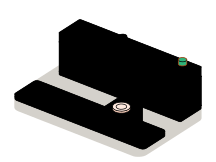
Fig. 01Seal and handover stationTESTSTABLEappv 2.4v 2.5NEWCURRENTSEAL · CHANNEL · VERIFICATIONLooping
The new version leaves the press sealed and passes through both channels. At the workstation, the verifier looks at the seal before letting it into the second bay; if it does not start, the switch hands control back to the previous one.

Situations

What you can solve with signing and automatic updates

It pays off as soon as the application leaves your office: people you do not know install it, on machines you do not control, and it has to stay current without anyone remembering.

  • The system warns that the app is dangerous

    Windows shows a warning screen and macOS refuses to open it. With the installer signed, and reviewed by Apple in the case of macOS, it installs like any other program.

  • Every workstation has a different version

    Updating by hand means they are never all current. The application checks by itself whether there is a new version and installs it when it is not in the way.

  • A bad version that is already everywhere

    It ships with a bug and reaches everyone at once. Publishing to a small group first, and with automatic rollback, the damage stays in that group.

  • Fear of someone spoofing the update

    If the app installs whatever arrives without checking it, whoever controls the download controls the machine. Every update is signed and the app rejects any that is not.

The seal: it says who publishes and gives away any change

What to check before starting

  • Which systems it is distributed on and how it is installed today
  • Who holds the certificates and where the keys are kept
  • Where the versions will be hosted and who may publish them
  • Whether the machines have administrator rights or a department manages them

Services

What we set up for signing and updating

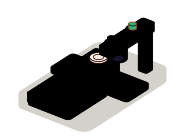
Four pieces of the same chain, from the repository to the workstation. They serve equally for an app built with Tauri, with Electron or with .NET.

  • Module 1 · Seal press

    Installer signing

    Certificates in your company’s name, signing of every version for Windows and macOS and the pass through Apple’s automatic review, with the keys out of reach of day-to-day work.

    Examples of deliverables

    • Signing certificate for Windows
    • Apple signing and review for macOS
    • Keys on a secure device
  • Module 2 · Version shelf

    Channels and publishing

    A place where the versions live and a process that publishes them: stable channel and test channel, rollout by groups and who may give the go-ahead.

    Examples of deliverables

    • Stable channel and test channel
    • Publishing to one group first
    • Automatic publishing from the repository
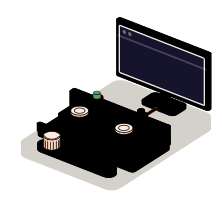
  • Module 3 · Verifier

    Automatic update inside the app

    The part that goes inside the application: checking whether there is a version, downloading it, verifying its signature and installing it when it does not interrupt, with a clear notice for whoever uses it.

    Examples of deliverables

    • Check on startup
    • Signature verification
    • Install when the app closes
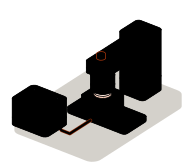
  • Module 4 · Handover

    Rollback and control

    If the new version does not start, the application goes back to the previous one by itself. And a record of which version each workstation has, to know how a rollout is going.

    Examples of deliverables

    • Automatic rollback
    • Dashboard of versions per workstation
    • Blocking a faulty version

A working example

A new version reaches the workstation

Simulated demonstration. Publish version 2.5 and follow it to a workstation. Also try it with a file altered along the way and with a version that does not start.

Simulated demo · sample data

What gets published

Workstation

Version in use2.4

Up to date

The journey

  1. Signed with the company’s key
  2. Test channel
  3. Stable channel
  4. Downloaded at the workstation
  5. Signature checked
  6. Installed in the second bay
  7. Start

Nothing is downloaded or installed: the journey is simulated in your browser. The three outcomes, install, reject and roll back, are the ones a real update system has to cover.

Integration

How it fits with your systems

Updating is a chain that starts in your repository and ends at each workstation. Every link has to be able to trust the one before.

Where it comes from

  • Your repositoryevery version tagged
  • Your company’s certificatesa signature for each system
Signed updatesSigning and updatingseals, publishes and verifies

Where it goes

  • Windows and macOSinstallation without warnings
  • The workstationsnew version, by itself
  • Test channelone group before everyone
  • Version recordwhat each workstation has

Dependencies worth checking

  • Which certificates each system requires and what their issuer checks before granting them
  • Where the keys are kept and who may sign
  • Whether your customers’ network allows updates to be downloaded
  • What happens to local data when the version changes

How we work and what we deliver

How we work on a signing and update job

  1. 01

    Initial review

    We look at how the application is compiled and handed out today, which certificates exist and which warnings users see.

  2. 02

    Scope

    We write down what gets signed, where the versions live, which channels there are and what happens when one fails.

  3. 03

    First release

    A signed installer that opens without warnings and a first update that reaches a test machine by itself.

  4. 04

    Validation

    You publish a version following the guide, and together we try an altered one and one that does not start.

  5. 05

    Documentation

    How to sign and publish, where the keys are, when the certificates expire and what to do then.

What you get when the job closes

  • The signing and publishing process, automated in your repository
  • The certificates and the keys in your company’s name
  • A guide for publishing and for renewing the certificates
  • The list of what is left out, and why

Questions

Questions about Signed updates

Missing yours? Write it to info@veodar.com and we'll reply with a specific question, not a brochure.

Why does my application show up as “unknown publisher”?

Because it is not signed with a certificate the system recognizes. Windows and macOS distrust by default anything whose publisher they do not know. The signature identifies your company and makes it possible to check that the file has not been modified since it left it.

What is needed in order to sign?

A code signing certificate in the company’s name for Windows and an Apple developer account for macOS. The issuers check that the company exists, so it is worth requesting them with room to spare. We go through the paperwork with you and leave the keys under your control.

Do all the warnings go away once it is signed?

On macOS, yes, once Apple has reviewed the application automatically. On Windows it depends on the type of certificate and on the reputation the file builds up: with some, a warning may still appear at first. We explain what to expect with each option before you buy anything.

Is an application that updates itself safe?

It is if it checks what it installs. Every update is signed with a key only your company holds, and the application rejects any file without that signature, even if it comes from the right address. Without that check, automatic updating would be a risk.

What happens if I publish a version with a bug?

There are three defenses: it is published to a small group first, the application goes back to the previous one if the new one does not start, and you can withdraw the version so nobody else receives it. None of them prevents the bug, but they limit how many people it reaches.

And in a company where users are not administrators?

That is taken into account from the start. There are ways to install and update without administrator rights, and others in which the IT department is the one that hands out the versions. We prepare the one that fits how those machines are managed.

Updated:

Other technologies

What it is combined with

All technologies
  • Desktop apps with TauriApplications for Windows, macOS and Linux with a web interface and a Rust core: light installers and scoped permissions. New, or migrated from Electron.
  • Desktop apps with ElectronMaintenance, security and performance of Electron applications, new features and, when it pays off, their migration to Tauri.
  • Desktop applications with .NETLine-of-business applications for Windows: forms, reports and integration with the rest of your office. New ones, or modernizing those that have been in use for years.

Get started

Tell us how your application reaches the workstations today.

Knowing which systems it is installed on and which warnings your users see is enough for a first answer.

What helps us assess it

  • Which systems it is installed on
  • Which warnings appear when installing it
  • How it is updated today
  • Which technology the app is built with

Before you write, see how we price a project or our solutions by department.

Fig. 07Morse keyH · E · L · L · O