Skip to content

Technology · Interfaces for Apple

Interface development with SwiftUI

SwiftUI is the current way to build interfaces on Apple's systems: the screen is described from small pieces and from the state of the data, and it redraws itself when that state changes. We build new interfaces and a component system of your own, and migrate old screens without stopping the app.

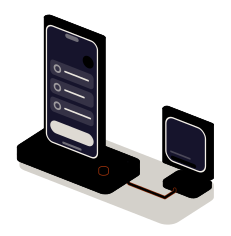
Fig. 01Screen composerSTATE339:41Orders3STATE · VIEWLooping
The screen is composed from loose pieces inside the frame. Moving the lever changes the state and the pieces rearrange themselves; the phone and the widget show the result.

Situations

What you can solve with a SwiftUI interface

SwiftUI pays off when the app has many screens that must look alike, adapt to whoever uses them and change often without breaking.

  • Screens that take long to change

    Every design tweak means touching several files and testing everything again. With reusable pieces, the change is made in one place and shows on every screen that uses them.

  • An app that ignores the user's settings

    Large text, dark mode, screen reader or right-to-left text. In SwiftUI most of it comes built in if the interface is built properly from the start.

  • The same information in more places

    A widget on the home screen, the status of an order on the lock screen or a view on the watch. These are extensions Apple asks to be built with SwiftUI.

  • A UIKit app that has to be modernized

    There is no need to redo it. New screens are written in SwiftUI and live alongside the old ones, which are replaced one by one when their turn comes.

The state lever: one value changes and the screen recomposes

What to check before starting

  • Which minimum iOS version is supported: it decides which parts of SwiftUI can be used
  • Whether there is a design or a brand system to start from
  • Which screens exist today and what they are built with
  • Which accessibility settings the app must respect

Services

What we build with SwiftUI

Four kinds of job. The first two usually go together: the screens come out of the pieces.

  • Module 1 · Frame

    Screens and whole interfaces

    Lists, forms, detail views and navigation, with their empty, loading and error states, built on the app's real data and tested with large text and in dark mode.

    Examples of deliverables

    • List with search and filters
    • Step-by-step form
    • Detail view with actions
  • Module 2 · Parts case

    Your own component system

    Your brand's colors, type, buttons, fields and cards turned into named pieces, documented and with their preview, so every new screen is assembled from them.

    Examples of deliverables

    • Component library
    • Light and dark theme
    • Components with previews
  • Module 3 · Old plate

    Gradual migration from UIKit

    UIKit screens are replaced one by one, starting with the ones that change most. In the meantime both ways of building an interface live in the same app without the user noticing.

    Examples of deliverables

    • New screen inside an old app
    • Replacing one form
    • Screen-by-screen migration plan
  • Module 4 · Preview

    Widgets, live activities and watch

    The information that matters, outside the app: a widget, the tracking of an order on the lock screen or a view on Apple Watch, fed by the same data.

    Examples of deliverables

    • Widget with the day's tasks
    • Live tracking of a delivery
    • Glance view on the watch

A working example

Change the state and watch the screen

Working example on made-up data. Here you don't touch the screen, you touch the state: how many orders there are, the text size and dark mode. The screen and the widget recompose themselves from the same description.

Working example · sample data

The state

3Pending orders

The description of the screen

  1. “Orders” screen, with the number in its header
  2. If there are no orders: a note that all is up to date
  3. If there are: one row per order
  4. With large text: the name moves below the number
  5. Colors: the system's, light or dark

The screen and the widget are drawn in your browser from the description you see beside them; it is not a real app or Apple code. It shows the idea behind it: the interface is a function of the state.

Integration

How it fits your app

SwiftUI is the layer you see. Underneath are the app's data and rules, written in Swift, and around it, what already exists.

Where it comes from

SwiftUISwiftUI interfaceredraws with the state

Where it goes

  • iPhone and iPadadapted screens
  • Widgets and lock screeninformation at a glance
  • Apple Watchwatch views

Dependencies worth checking

  • Which iOS version the oldest devices have
  • Which screens depend on third-party components
  • Whether the data is already separate from the screens or has to be separated
  • Which languages and accessibility settings are supported

How we work and what we deliver

How we run a SwiftUI job

  1. 01

    Initial review

    We look at the screens that exist, what they are built with, the minimum iOS version and the design we start from.

  2. 02

    Scope

    We write down which screens and pieces come in, in which order the old ones are migrated and what stays out.

  3. 03

    First release

    The first pieces and one whole screen working inside your app, on real data.

  4. 04

    Validation

    You test it with large text, in dark mode and with the screen reader, as well as in normal use.

  5. 05

    Documentation

    The catalog of pieces with their previews and the rules for building new screens from them.

What you get when the job closes

  • The code of the screens and the pieces in your repository
  • A component catalog with previews
  • The migration plan for the remaining screens
  • The list of what is left out, and why

Questions

Questions about SwiftUI

Missing yours? Write it to info@veodar.com and we'll reply with a specific question, not a brochure.

Does the app have to be redone to use SwiftUI?

No. SwiftUI and UIKit live in the same app: a new SwiftUI screen opens from an old one and the other way round. The usual path is to start with new screens and the ones touched most, and leave the stable ones for later.

Which iOS version is needed?

SwiftUI has grown with every iOS version, so the minimum version your app supports decides what can be used. We check it at the start against your users' real devices and it is written into the scope.

Does it work for an app already published and heavily used?

Yes, and that is where most care goes. Each migrated screen is released separately and compared with the previous one before that one is retired. If something gets worse, we go back without touching the rest.

Does the interface look the same on iPhone, iPad and watch?

It shares pieces and rules, but it is not the same screen stretched. Each device has its size and its way of being used, and the interface adapts to that. What doesn't change is the data or the brand look.

What do I gain in accessibility?

Much of the basics is included: the system text size, contrast, the screen reader and dark mode work if the pieces are built the way SwiftUI expects. What doesn't come by itself, reading order or the labels of icon buttons, we review screen by screen.

And the Android version?

SwiftUI is only for Apple's systems. On Android the equivalent is Jetpack Compose, which works on the same idea. If the app is on both systems, the design and the names of the pieces are shared even though the code is different.

Updated:

Other technologies

What it is combined with

All technologies
  • iOS app development in SwiftNative apps for iPhone and iPad that make full use of the camera, NFC, biometrics or the watch. We build them, maintain them and publish them with you.
  • Jetpack Compose interfacesScreens that adapt from phone to tablet and foldable, with your brand's theme. New interfaces or gradual migration from XML views.
  • React Native app developmentOne codebase for iPhone and Android, with native modules where they are needed. We build new apps and continue the ones you already have.

Get started

Tell us which screens you want to build or change.

A few screenshots of the app or the design you have are enough for a first answer.

What helps us assess it

  • Screenshots or design of the screens
  • What the app is built with today
  • The minimum iOS version
  • Which devices: phone, tablet, watch

Before you write, see how we price a project or our solutions by department.

Fig. 07Morse keyH · E · L · L · O